
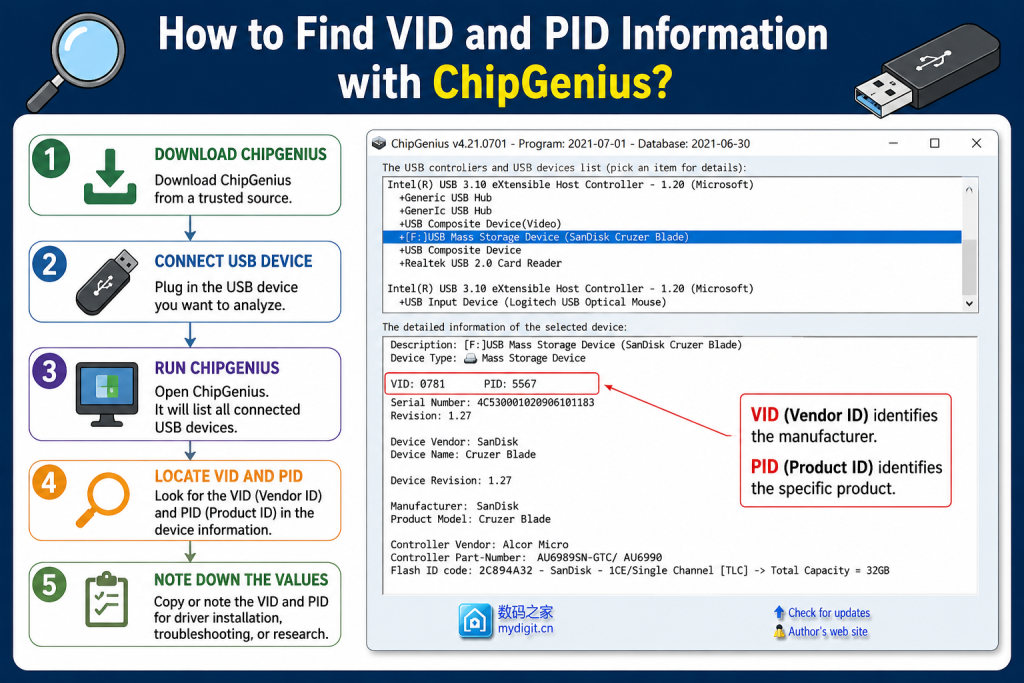
If you work with USB devices, drivers, or hardware troubleshooting, you may have heard about VID and PID numbers. These identifiers are essential for recognizing and managing USB devices correctly on your computer. One of the easiest tools to find this information is ChipGenius. It is a lightweight utility that quickly detects USB device details without requiring installation of complex drivers or technical setup.
We will explain how to find VID and PID information using ChipGenius in a simple, user-friendly way. Whether you are a beginner or someone working in hardware repair or IT support, this article will help you understand everything step by step.
Read More: Is ChipGenius Safe to Download and Use?
What is VID and PID?
Before learning how to use ChipGenius, it is important to understand what VID and PID actually mean.
- VID (Vendor ID): A unique identifier assigned to the manufacturer of a USB device.
- PID (Product ID): A unique identifier assigned to a specific product made by that manufacturer.
Together, VID and PID help your computer identify what device is connected, such as a USB flash drive, keyboard, mouse, or card reader. These values are also very useful when installing or fixing drivers.
What is ChipGenius?
ChipGenius is a small but powerful Windows tool designed to detect detailed information about USB devices connected to your computer.
It can identify:
- VID and PID numbers
- Chip controller model
- Device manufacturer
- Flash memory details
- USB version (2.0 or 3.0)
The best part is that it does not require installation. You simply run the program and it instantly shows all connected USB device information.
Why Use ChipGenius to Find VID and PID?
There are several ways to find VID and PID, but ChipGenius is preferred because:
- It is fast and lightweight
- No installation required
- Works even with unknown or corrupted USB devices
- Provides deep hardware-level information
- Easy for beginners to use
This makes it especially useful for technicians, developers, and users who frequently deal with USB devices.
How to Find VID and PID Using ChipGenius
Follow these simple steps to extract VID and PID information:
Step 1: Download ChipGenius
First, download ChipGenius from a trusted source. Since it is a portable tool, you do not need to install it.
Make sure you avoid unofficial or unsafe websites to prevent malware risks.
Step 2: Connect Your USB Device
Plug in the USB device you want to analyze. It can be:
- USB flash drive
- External hard drive
- USB card reader
- Mobile storage device
Wait a few seconds so your system can detect it properly.
Step 3: Run ChipGenius
Open the ChipGenius application. You will see a list of all USB devices currently connected to your system.
The tool will automatically scan and display detailed information about each device.
Step 4: Locate VID and PID Information
In the displayed results, look for the section that shows:
- VID (Vendor ID)
- PID (Product ID)
These values are usually shown in a format like:
- VID: 1234
- PID: AB12
You may also see additional information like controller model and manufacturer name, which can help further identify the device.
Step 5: Note Down or Copy the Values
Once you find the VID and PID, you can:
- Copy them for driver installation
- Use them for hardware repair
- Search for compatible firmware or tools
- Troubleshoot device issues
These values are especially helpful when Windows fails to recognize a USB device correctly.
Common Problems You Can Solve Using VID and PID
Finding VID and PID is not just for technical curiosity. It solves real-world problems such as:
Driver Installation Issues
If Windows cannot install the correct driver, VID and PID help you search for the exact driver online.
USB Device Not Recognized
When a device shows “Unknown Device,” VID/PID can help identify what hardware it is.
Firmware Recovery
Advanced users use VID/PID to repair or restore USB flash drives.
Hardware Identification
Technicians use it to determine the chip manufacturer and model.
Tips for Using ChipGenius Safely
To ensure safe and accurate results:
- Always download from trusted websites
- Do not modify system files while using the tool
- Close unnecessary USB applications before scanning
- Use updated versions for better compatibility
Advantages of Using ChipGenius
Here are some key benefits:
- No installation required
- Instant detection of USB hardware
- Accurate VID and PID extraction
- Useful for professionals and beginners
- Supports a wide range of USB devices
Conclusion
Finding VID and PID information is essential for managing and troubleshooting USB devices. Instead of manually searching through system settings or complex tools, ChipGenius provides a quick and reliable solution.
With just a few clicks, you can easily identify your device’s vendor and product ID, making driver installation, hardware repair, and device troubleshooting much simpler.If you often work with USB devices or face recognition issues, ChipGenius is a must-have utility in your toolkit.