
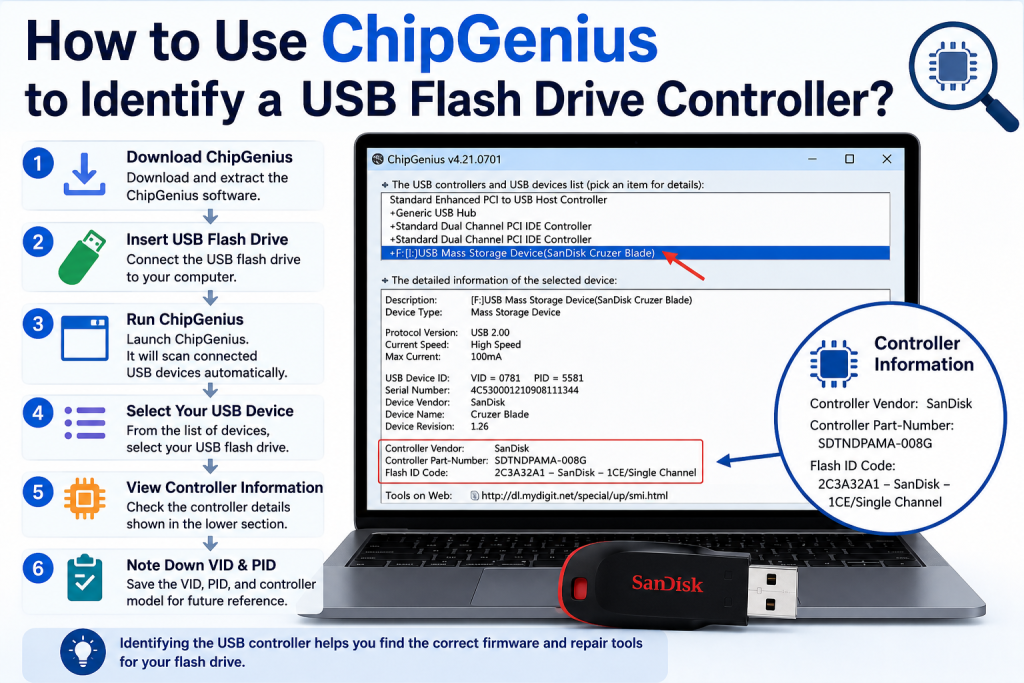
USB flash drives are incredibly useful for storing and transferring files, but they can sometimes develop problems such as becoming unreadable, showing incorrect storage capacity, or failing to work properly. In many of these situations, identifying the USB flash drive controller is the first step toward troubleshooting or repairing the device. This is where ChipGenius becomes a valuable tool.
ChipGenius is a free utility that provides detailed information about USB devices connected to your computer. It helps users determine the controller chip used inside a flash drive, making it easier to find compatible firmware tools and repair solutions.
Read More: What Is ChipGenius and How Does It Work?
What Is a USB Flash Drive Controller?
A USB flash drive controller is the small chip inside the device that manages communication between the computer and the NAND flash memory. It controls how data is stored, retrieved, and transferred.
Different manufacturers use different controller chips, even in flash drives that look identical from the outside. Identifying the exact controller model is important because repair utilities are often designed for specific controllers.
Without knowing the controller type, attempting firmware repairs can be risky and may permanently damage the device.
Why Identify a USB Controller?
There are several reasons why users may need to identify the controller inside a USB drive:
- To repair a corrupted flash drive.
- To locate the correct mass production or firmware tool.
- To diagnose USB recognition issues.
- To verify the authenticity of a storage device.
- To gather technical information for troubleshooting forums.
- To assist with professional data recovery procedures.
ChipGenius simplifies this process by displaying controller details that Windows normally hides.
What Is ChipGenius?
ChipGenius is a lightweight Windows utility designed to analyze USB devices and reveal their hardware information. Unlike Device Manager, which shows limited details, ChipGenius provides deeper insights into the internal components of the device.
The software can display information such as:
- Vendor ID (VID)
- Product ID (PID)
- Controller manufacturer
- Controller part number
- Device revision
- Flash memory information
- USB protocol details
Because it is portable, ChipGenius usually does not require installation.
How to Use ChipGenius to Identify a USB Flash Drive Controller
The process is straightforward and takes only a few minutes.
Step 1: Download ChipGenius
First, download a trusted version of ChipGenius from a reputable source. Since the software is portable, you can run it immediately after extracting the downloaded files.
Before downloading any third-party utility, ensure that your antivirus software is active and up to date.
Step 2: Insert the USB Flash Drive
Connect the USB flash drive you want to analyze to your computer.
Wait a few seconds for Windows to recognize the device. If the drive appears in File Explorer, that is a good sign, but ChipGenius may still detect certain devices even if they are not fully accessible.
Step 3: Launch ChipGenius
Open the ChipGenius executable file.
Once launched, the program automatically scans all connected USB devices. The detected devices are displayed in a list within the main interface.
No additional setup is usually required.
Step 4: Select the Correct USB Device
In the device list, locate your USB flash drive.
If multiple USB devices are connected, pay close attention to details such as:
- Device name
- Capacity information
- Manufacturer name
- USB connection type
Click on the appropriate device to display its technical information.
Step 5: Find the Controller Information
After selecting the device, review the information displayed in the lower section of the program window.
Look for entries similar to:
- Controller Vendor
- Controller Part Number
- Chip Vendor
- Chip Part Number
These fields identify the controller used inside the flash drive.
For example, you may see controller manufacturers such as:
- Phison
- Silicon Motion
- Alcor Micro
- Skymedi
- Chipsbank
- Innostor
The controller part number is often the most important detail when searching for repair tools.
Step 6: Record the VID and PID
ChipGenius also displays the Vendor ID (VID) and Product ID (PID) of the device.
These identification numbers can help confirm the controller information and are frequently requested in USB repair communities and technical forums.
It is a good idea to save or copy these values for future reference.
Step 7: Research Compatible Utilities
Once you have identified the controller model, you can search for compatible firmware or recovery tools designed specifically for that controller.
This step should be approached carefully.
Using the wrong repair utility may render the flash drive permanently unusable. Always verify compatibility before proceeding with any firmware-related actions.
Tips for Using ChipGenius Safely
Although ChipGenius itself is generally safe, consider the following precautions:
Back Up Important Data
If the USB drive is still accessible, copy important files to another location before attempting any repairs.
Use Trusted Sources
Download ChipGenius and any associated repair tools only from reputable websites.
Avoid Guesswork
Never use firmware tools based solely on the appearance or brand of the USB drive. Always verify the controller information first.
Proceed Carefully with Repairs
ChipGenius identifies hardware; it does not repair it. Any repair attempts should be performed only after understanding the risks involved.
What If ChipGenius Cannot Detect the Controller?
In some cases, ChipGenius may provide incomplete information or fail to identify the controller.
This can happen if:
- The USB drive has severe hardware damage.
- The controller firmware is corrupted.
- The device uses newer hardware not fully recognized by the software.
- The USB connection is unstable.
If this occurs, trying another USB port or testing the drive on a different computer may help.
Advantages of Using ChipGenius
ChipGenius offers several benefits for users troubleshooting USB devices.
It is lightweight, portable, and easy to use. The software provides valuable technical information that is otherwise difficult to obtain. It also saves time by helping users quickly identify the correct controller before searching for repair utilities.
For technicians and advanced users, ChipGenius is often one of the first tools used when diagnosing flash drive issues.
Conclusion
Learning how to use ChipGenius to identify a USB flash drive controller can be extremely helpful when troubleshooting storage problems. By revealing important details such as controller manufacturer, part number, VID, and PID, the software enables users to make informed decisions about repairs and recovery options.
While ChipGenius does not fix damaged drives directly, it provides the information needed to choose the right tools and avoid potentially harmful mistakes. Whether you are a technician, IT professional, or an advanced computer user, ChipGenius remains a practical utility for understanding what is happening inside your USB flash drive.