
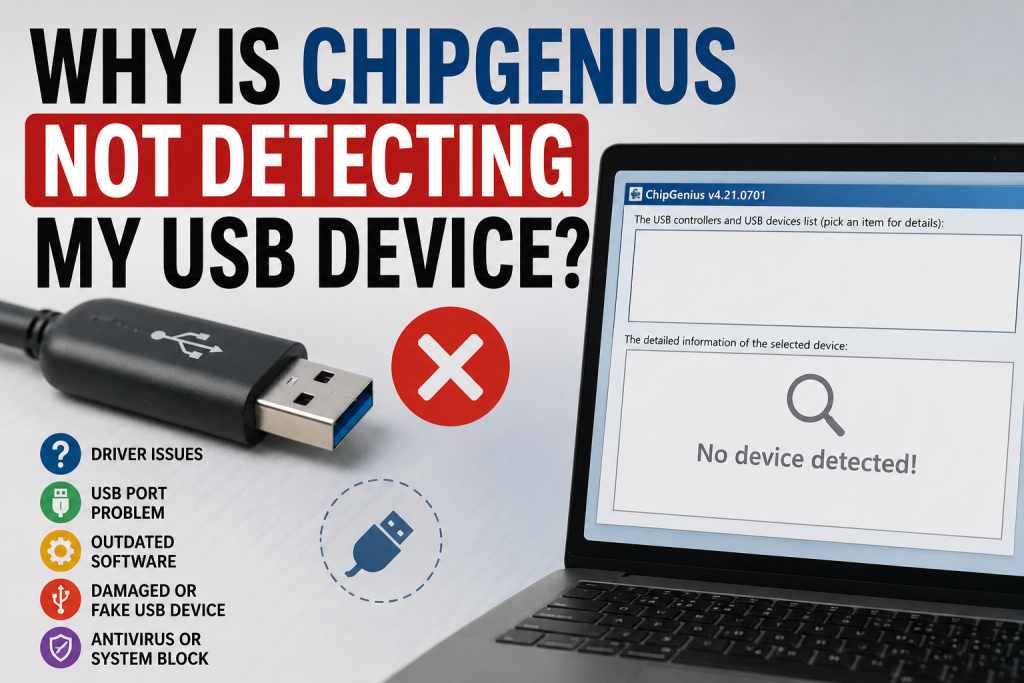
ChipGenius is a popular utility used to identify USB flash drive controller chips and gather detailed information about storage devices. However, many users often face a frustrating issue where the software fails to detect their USB device at all. This problem can happen for several reasons, including outdated software, driver conflicts, faulty USB ports, or even a damaged or counterfeit flash drive.
In some cases, Windows may recognize the device, but ChipGenius still shows no information, leaving users confused about what went wrong. Understanding the root cause is important because it helps you quickly fix the issue and avoid unnecessary troubleshooting. In this article, we will explore the most common reasons why ChipGenius is not detecting your USB device and provide simple, effective solutions to get it working again.
Read More: Can ChipGenius Detect Fake USB Flash Drives?
What Is ChipGenius and Why People Use It?
ChipGenius is a lightweight Windows utility used to identify USB controller chips and flash memory details.
It helps users:
- Detect fake USB flash drives
- Identify the controller chip inside USB devices
- Check storage capacity authenticity
- Support firmware repair and recovery tasks
Because of its usefulness, it’s widely used in USB repair and data recovery work.
But sometimes, instead of showing device details, ChipGenius shows nothing—or worse, it doesn’t detect the USB device at all.
So why does this happen?
Outdated ChipGenius Version
One of the most common reasons is simply using an old version of ChipGenius.
USB controller technology evolves constantly. Newer flash drives use updated controllers that older versions of ChipGenius don’t recognize.
Solution:
- Download the latest version of ChipGenius from a trusted source
- Avoid outdated software versions circulating on forums or old blogs
- Run the tool as Administrator
USB Device Not Properly Connected
Sometimes the issue isn’t software at all—it’s hardware connection.
If your USB drive is:
- Not fully inserted
- Using a damaged USB port
- Connected through a faulty USB hub
ChipGenius may fail to detect it.
Solution:
- Plug the USB directly into your computer (avoid hubs)
- Try a different USB port (preferably USB 2.0 and USB 3.0 both)
- Check if Windows File Explorer detects the drive
Driver Issues in Windows
ChipGenius relies on Windows USB drivers to communicate with devices. If drivers are missing or corrupted, detection may fail.
Common signs:
- USB shows “Unknown Device” in Device Manager
- Drive appears but cannot be accessed
- ChipGenius shows blank or no info
Solution:
- Open Device Manager
- Find “Universal Serial Bus controllers”
- Right-click and update drivers
- Restart your system after updating
Unsupported or New USB Controller Chip
Some USB flash drives use new or rare controller chips that ChipGenius does not yet support.
This is especially common in:
- Cheap counterfeit flash drives
- Newly released USB models
- Low-quality imported storage devices
Solution:
- Try alternative tools like:
- Flash Drive Information Extractor
- USBDeview
- Wait for updated ChipGenius database versions
Fake or Damaged USB Drive
Ironically, one of the reasons people use ChipGenius is to detect fake drives—but a severely damaged or fake USB may not respond at all.
Possible symptoms:
- Drive shows incorrect capacity
- Windows asks to format it repeatedly
- ChipGenius cannot read controller info
Solution:
- Test the drive using H2testw or similar tools
- Try on multiple computers
- If it fails everywhere, the USB is likely dead or fake
Antivirus or Security Software Blocking Access
Some antivirus programs may block low-level hardware access tools like ChipGenius because they interact directly with USB controllers.
Solution:
- Temporarily disable antivirus protection
- Add ChipGenius to exclusions list
- Run the tool as Administrator
Running ChipGenius on Incompatible System
ChipGenius is an older utility and may not work well with:
- New Windows 11 updates
- 64-bit system restrictions (in some versions)
- Virtual machines or restricted environments
Solution:
- Run in compatibility mode (Windows 7 or XP mode)
- Use a physical PC instead of a VM
- Try a different version of the tool
USB Device in a Faulty State
If the USB is physically damaged or its controller is corrupted, it may not respond to any software tool.
Signs of hardware failure:
- USB not showing in Disk Management
- No sound when plugged in
- Device disconnects repeatedly
Solution:
- Try professional data recovery tools
- Consult a repair technician if data is important
- Replace the USB if recovery is not needed
How to Fix ChipGenius Not Detecting USB Device (Quick Checklist)
Here’s a quick troubleshooting checklist you can follow:
✔ Update ChipGenius
✔ Try different USB ports
✔ Connect USB directly (no hub)
✔ Check Device Manager
✔ Disable antivirus temporarily
✔ Test on another PC
✔ Use alternative USB tools
Conclusion
When ChipGenius is not detecting your USB device, the problem is usually not the software itself—but a mix of outdated versions, driver issues, or hardware problems.The good news is that in most cases, the issue can be fixed by simple troubleshooting steps like updating drivers or changing USB ports.However, if multiple tools fail to detect your USB, it’s likely a hardware failure or a counterfeit drive that cannot be recovered.